Set up the iPhone app
Updated 2026-10-26
Install Sentinel VMS from the App Store, pair it with your site, and watch from anywhere.
- Install Sentinel VMS from the App Store.
- Open it and tap Add a Site, then enter your server's address, for example
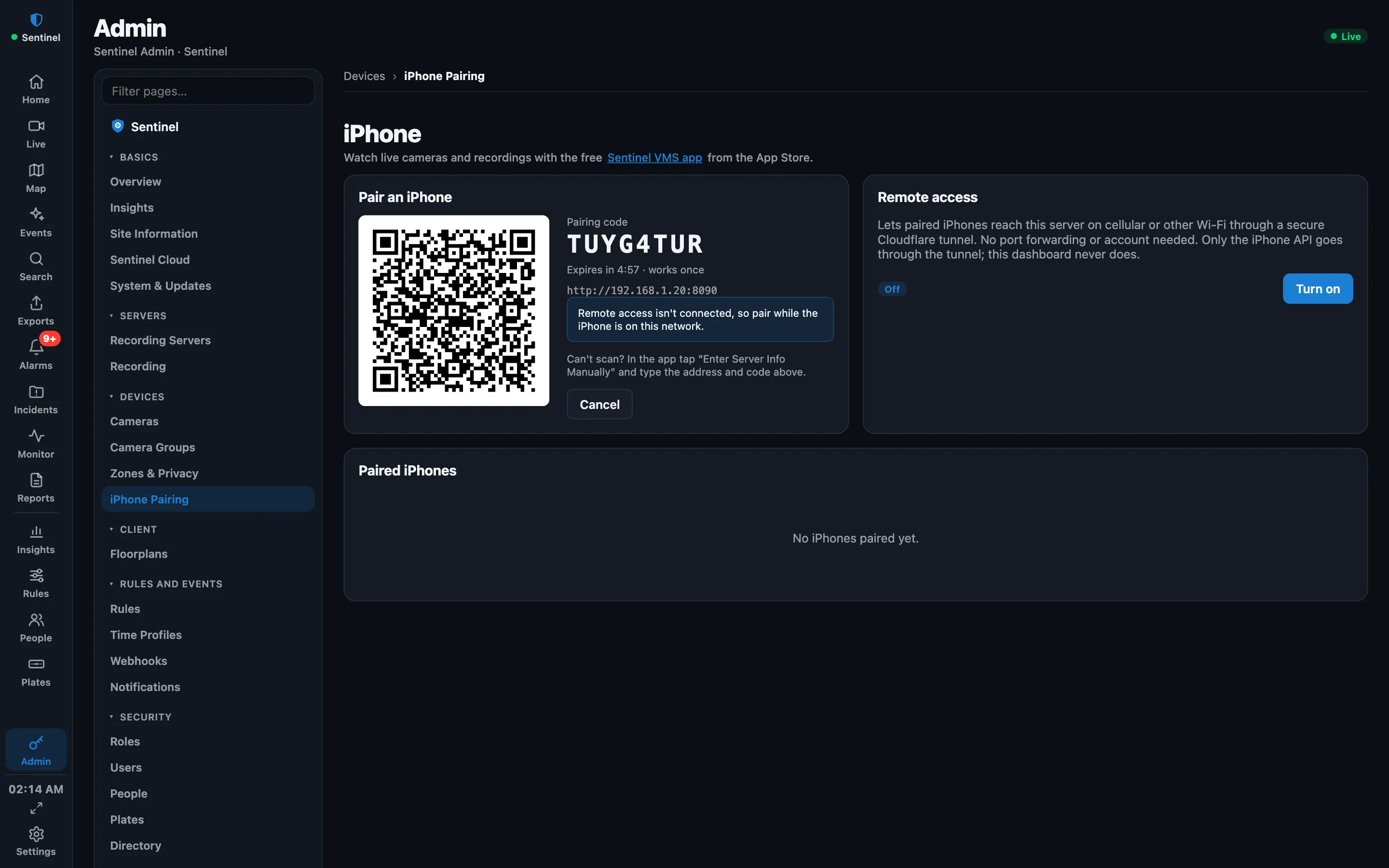
192.168.1.20, and sign in with your Sentinel user name and password. - Or, faster: in the browser Operator open Admin → Devices → iPhone Pairing, choose the address the phone should use, and click Pair iPhone to show a one-time QR code. In the app tap Scan Site QR Code and point it at the screen.
- Allow notifications when iOS asks, so alarm rules can reach you.
What is in the app
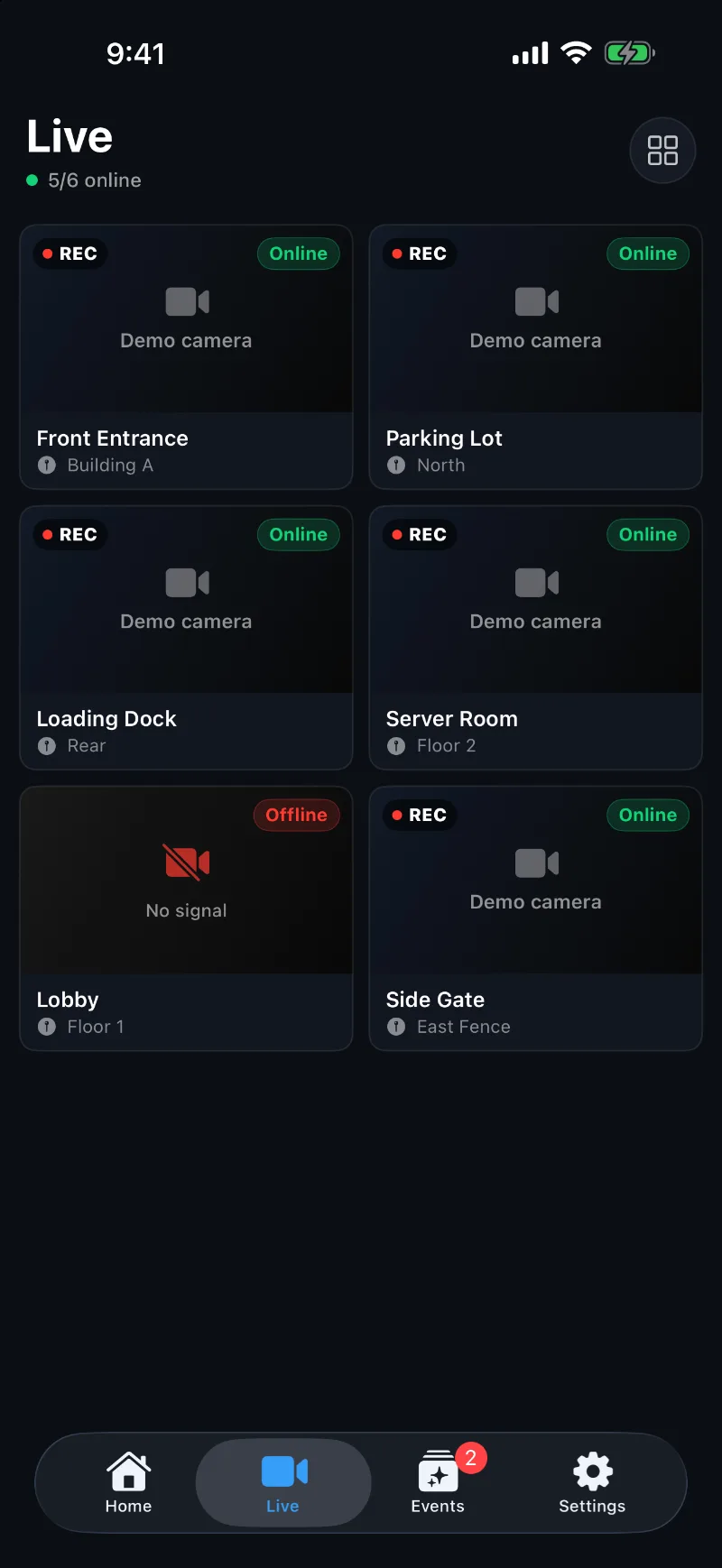
The tabs are Home, Live, Events, People, Insights and Settings. On a wider screen they sit in a sidebar.
- Alarms show on Home with the instructions from your alarm rule. Tap one to see it, acknowledge it or play the recording.
- Live shows your cameras. Pinch to zoom and double-tap to reset. On a PTZ camera, tap PTZ to pan, tilt and zoom. Move the camera where you want it and choose Save preset…; Delete preset… removes one.
- Playback on the iPhone shows the same detection ticks and alarm markers as the Operator. See Live view and playback.
- Settings has the Sentinel Cloud status, your sites, and, with Sentinel Cloud, Send a video to Sentinel and Use this iPhone as a camera. See Use an iPhone as a camera.
Away from home
With Sentinel Cloud turned on, open the app once on your home network. It learns the site's cloud address and switches to it automatically on cellular or other Wi-Fi. The status under the site name reads Remote · Cloudflare when it is using it.
Without Sentinel Cloud you can type a remote address yourself under the site's settings, for example a VPN address or your own tunnel.
Just looking?
Try Demo Mode on the first screen loads sample cameras and alarms, no server needed.
More guides, including Sentinel Cloud setup and users and roles, are in the knowledge base for signed-in users.