Add your cameras
Updated 2026-10-26
Find cameras on the network with a scan, or add one by its RTSP address, and choose what to record.
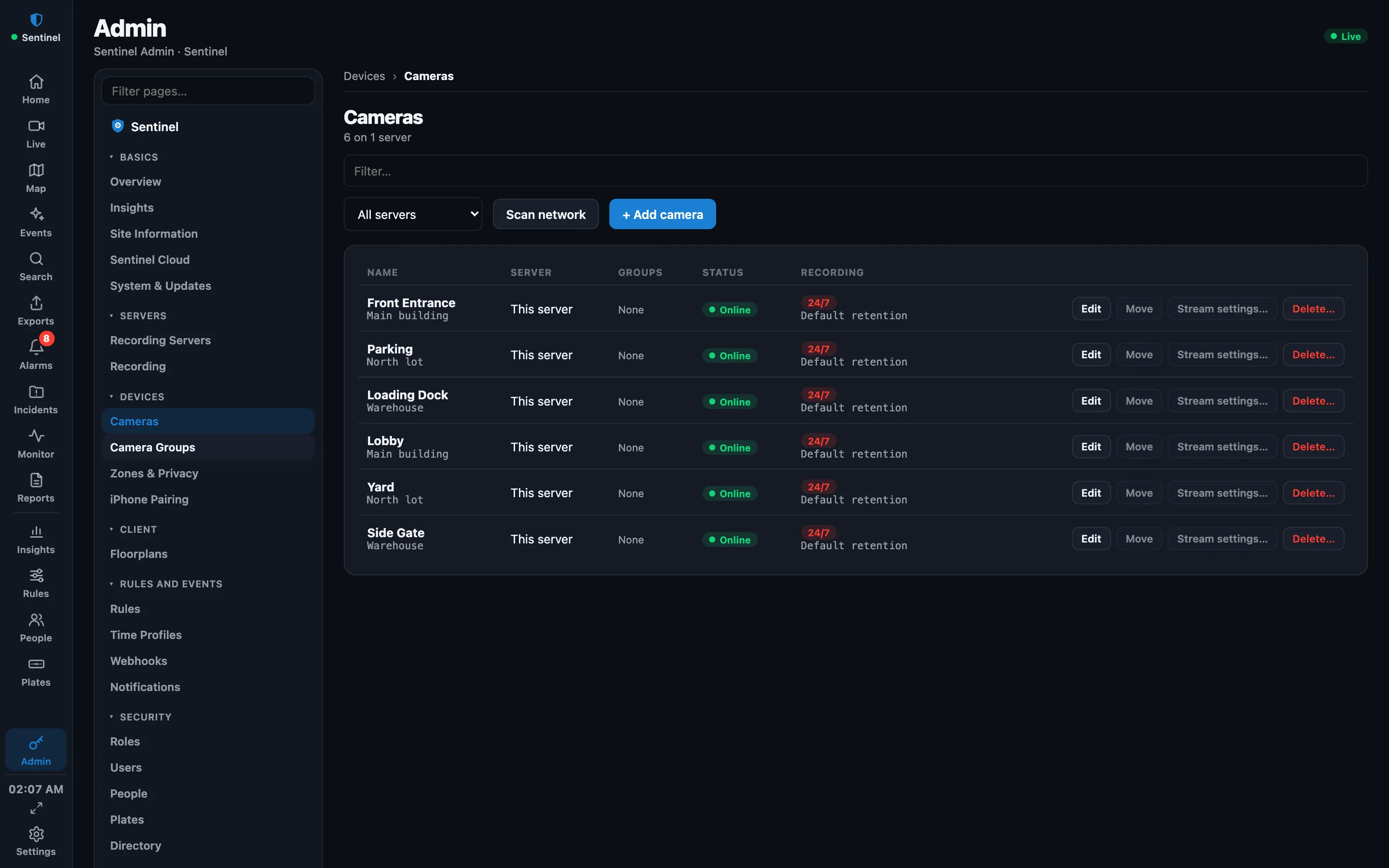
Cameras are added in Admin (the last tab on the rail), where you also choose which recording server records them. On the Mac, Management… opens the same pages. You need the Admin role, or a custom role that may manage cameras.
Scan the network
- Open Admin → Devices → Cameras.
- Choose Scan network. Sentinel lists the ONVIF cameras it finds. If your camera is missing, use Scan whole subnet: it checks every address on the server's network for an RTSP port, which finds cameras that don't answer ONVIF discovery.
- Pick one, enter the camera's user name and password, and Sentinel reads its streams.
With several recording servers, Scan from chooses which server does the scanning. Pick the one on the same network as the cameras.
Or add by address
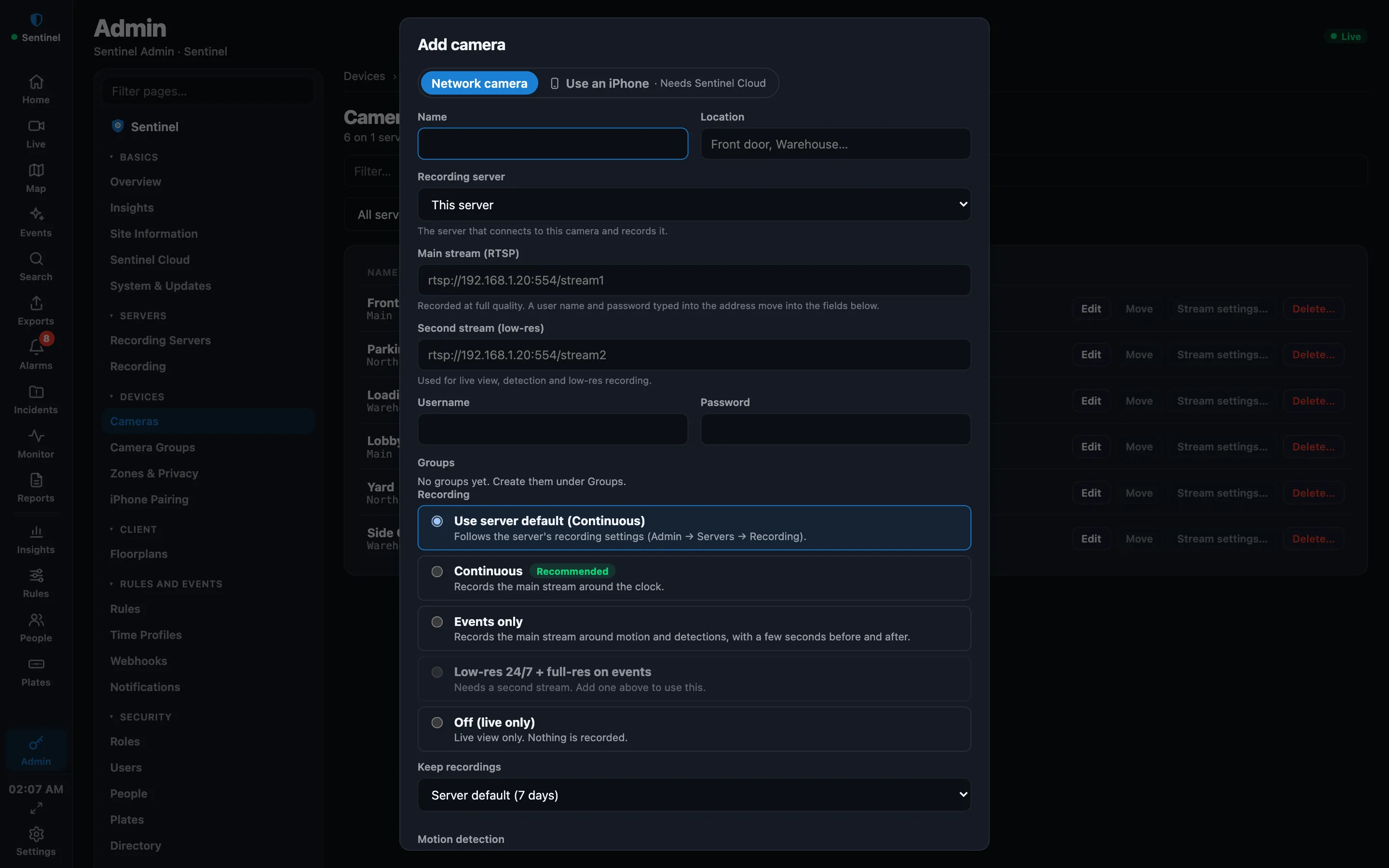
Choose + Add camera, keep Network camera selected, and paste the camera's RTSP address into Main stream (RTSP), for example rtsp://192.168.1.20:554/stream1. The path depends on the make: Axis cameras use /axis-media/media.amp, Hikvision /Streaming/Channels/101; the camera's manual or app shows the exact path. A user name and password typed into the address move into their own fields.
Choose the streams
- Record this stream: the full-quality main stream.
- Live view stream: Same as recording, or a second, low-res stream used for live view, detection and low-res recording. Find streams asks the camera which streams it has, and Use recommended picks one for you. Many cameras allow only a few connections at once: if another recorder or app also watches the camera, the second stream may be refused.
Choose what to record
Under Recording, pick Use server default or one of the four modes: Continuous, Events only, Low-res 24/7 + full-res on events, or Off (live only). They are explained in Recording modes and storage.
Motion, alarms and loitering
- Motion detection: Low, Medium or High sensitivity decides how easily motion raises an event.
- Raise alarms for chooses which kinds of detection become alarms.
- Loitering after and the loud noise threshold are covered in Detection models, faces, plates and search.
Several recording servers
On a site with more than one recording server, the form asks which Recording server should record the camera. Pick the one on the same network as the camera. To move a camera later, edit it and choose another server; older recordings stay where they were recorded. See Add a recording server.
No network camera handy? An iPhone can be a camera too: Use an iPhone as a camera.
More guides, including Sentinel Cloud setup and users and roles, are in the knowledge base for signed-in users.